C ontrol a Server with SSH
Need to manage a server without sitting right in front of it? You can do that easily using SSH (short for Secure Shell), a network protocol that lets you securely access another computer over a network.
In this guide, I’ll show you how to remotely control a server from a client computer using SSH. Here’s the basic flow:
Steps to Remotely Access a Server with SSH
-
Login to the server The server IP address in this example is
10.252.108.76.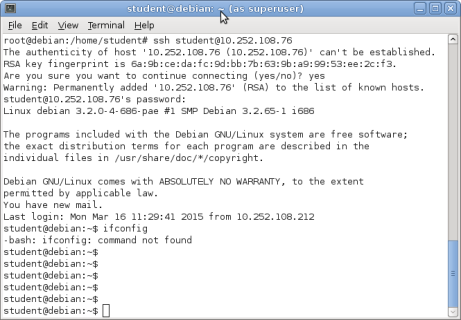
-
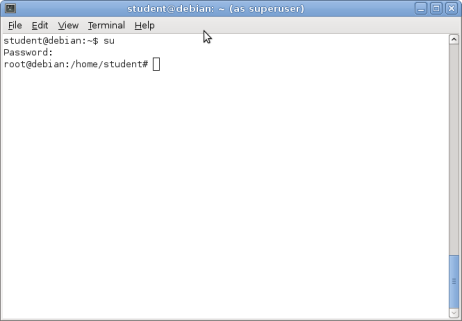
Login as root user
-
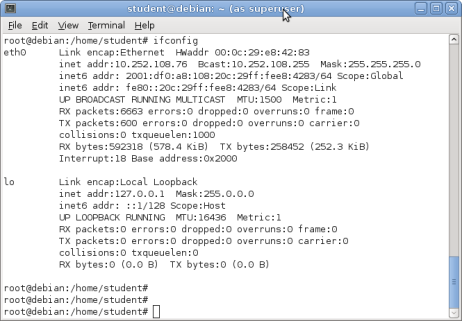
Check the server’s current IP address
-
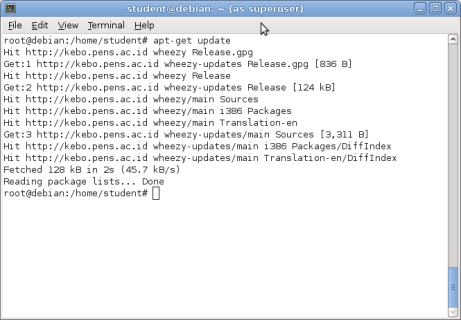
Update the server
-
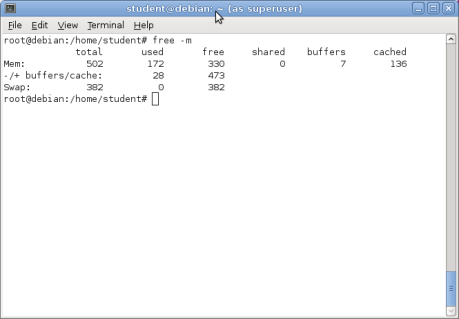
Check memory usage
-
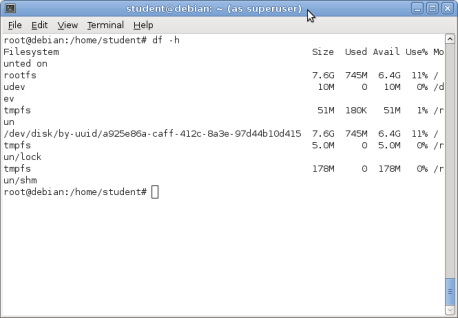
Check hard drive space
-
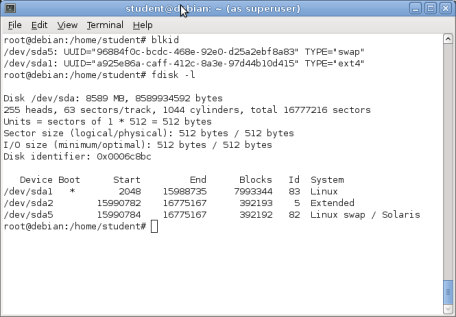
View disk partitions
-
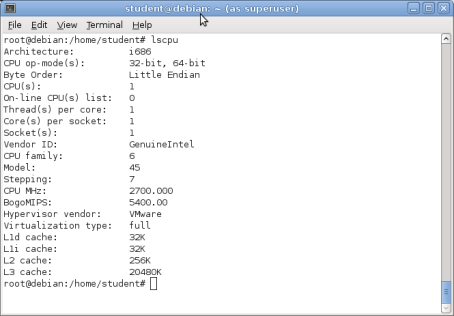
Check CPU status
-
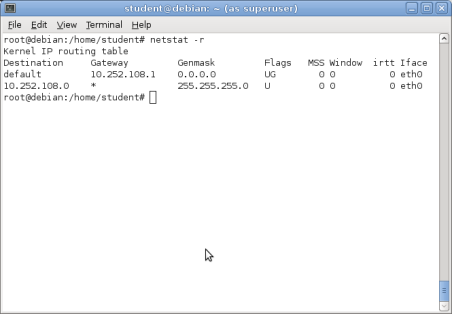
View the default gateway
-
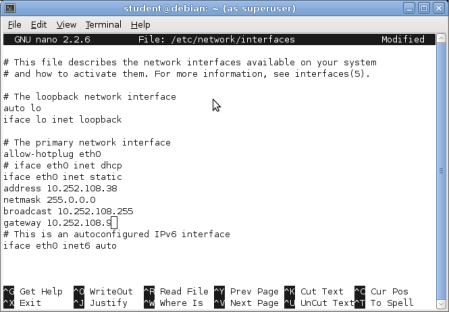
Change the server’s IP address To do this, edit the file located at
/etc/network/interfaces.
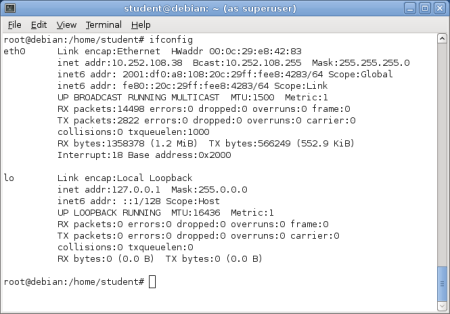
- Confirm the new IP address Once it’s changed, you’ll see the updated IP.
That’s it! You’ve just managed a server remotely using SSH. 🚀
Great for updates, monitoring, and quick fixes without needing physical access.