G etting Started with A11y

What’s a11y?
If you’ve heard of i18n (short for internationalization), a11y follows the same pattern — it stands for accessibility. In short, it’s about making sure as many people as possible can use what we build, including people with disabilities.
Accessibility in Daily Life
Accessibility isn’t just about wheelchair ramps. Think about door handles:
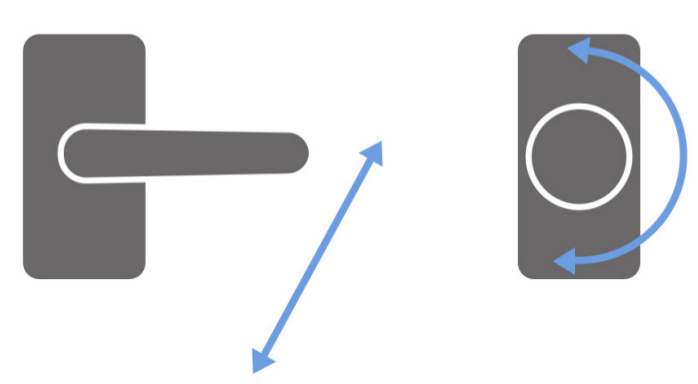
Door handles (left) and door knob (right)
Door handles are easier for most people to use than round knobs. Another example: some zebra crossings play sounds to help people with visual impairments know when it’s safe to walk. Subtitles help people who are deaf enjoy videos. Traffic signs use simple icons to be understood quickly.
Web Accessibility
On the web, accessibility means making sure websites can be used by everyone — including users who can’t see or hear well, or who can’t use a mouse. It also covers users in tough environments, like bright sunlight, or using only a keyboard.
Screen Readers
People with visual impairments often use screen readers — software that reads out what’s on the screen. These tools rely heavily on proper HTML tags to work well.
Let’s say you design a button that looks good visually. For screen reader users, all they “see” is the HTML under the hood.
Here’s an example of three different-looking buttons with the same underlying HTML:
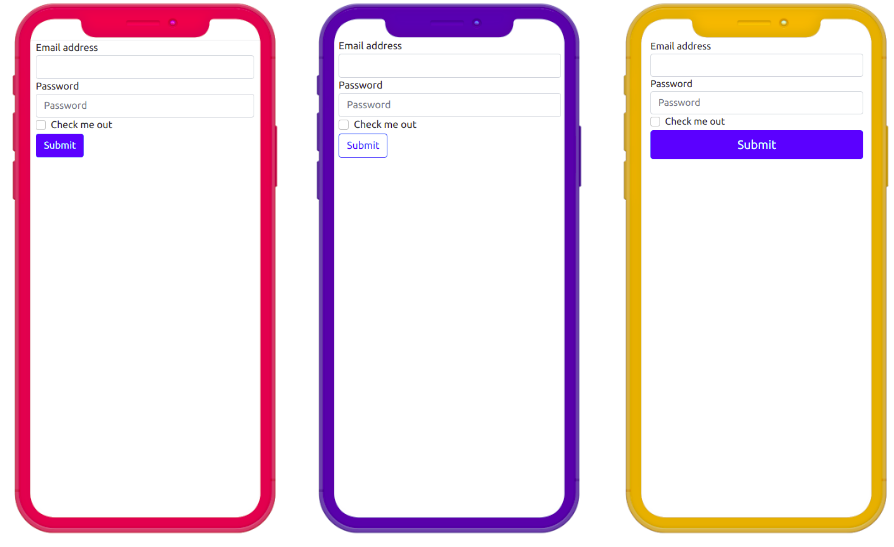
Different design, same HTML tags. From left to right: Design 1, Design 2, Design 3
<!-- Design 1 -->
<div class="container">
  <form>
    <div class="form-group">
      <label for="inputEmailAddress">Email address</label>
      <input type="email" class="form-control" id="inputEmailAddress" />
    </div>
    <div class="form-group">
      <label for="inputPassword">Password</label>
      <input type="password" class="form-control" id="inputPassword" />
    </div>
    <div class="form-group form-check">
      <input type="checkbox" class="form-check-input" id="inputCheckbox">
      <label class="form-check-label" for="inputCheckbox">Check me out</label>
    </div>
    <button type="button" class="btn btn-primary">Submit</button>
  </form>
</div>

<!-- Design 2 -->
<div class="container">
  <form>
    <div class="form-group">
      <label for="inputEmailAddress">Email address</label>
      <input type="email" class="form-control" id="inputEmailAddress" />
    </div>
    <div class="form-group">
      <label for="inputPassword">Password</label>
      <input type="password" class="form-control" id="inputPassword" />
    </div>
    <div class="form-group form-check">
      <input type="checkbox" class="form-check-input" id="inputCheckbox">
      <label class="form-check-label" for="inputCheckbox">Check me out</label>
    </div>
    <button type="button" class="btn btn-outline-primary">Submit</button>
  </form>
</div>


<!-- Design 3 -->
<div class="container">
  <form>
    <div class="form-group">
      <label for="inputEmailAddress">Email address</label>
      <input type="email" class="form-control" id="inputEmailAddress" />
    </div>
    <div class="form-group">
      <label for="inputPassword">Password</label>
      <input type="password" class="form-control" id="inputPassword" />
    </div>
    <div class="form-group form-check">
      <input type="checkbox" class="form-check-input" id="inputCheckbox">
      <label class="form-check-label" for="inputCheckbox">Check me out</label>
    </div>
    <button type="button" class="btn btn-block btn-primary">Submit</button>
  </form>
</div>
The design changes, but the HTML stays the same — and that’s what the screen reader reads.